
Guangzhou Phone Farm · Guangzhou, China
Installation Manual
USB mode, OTG/LAN, ADB authorization, router sizing and troubleshooting for phone farm hardware.
1. About the Equipment
Motherboard box / phone farm box
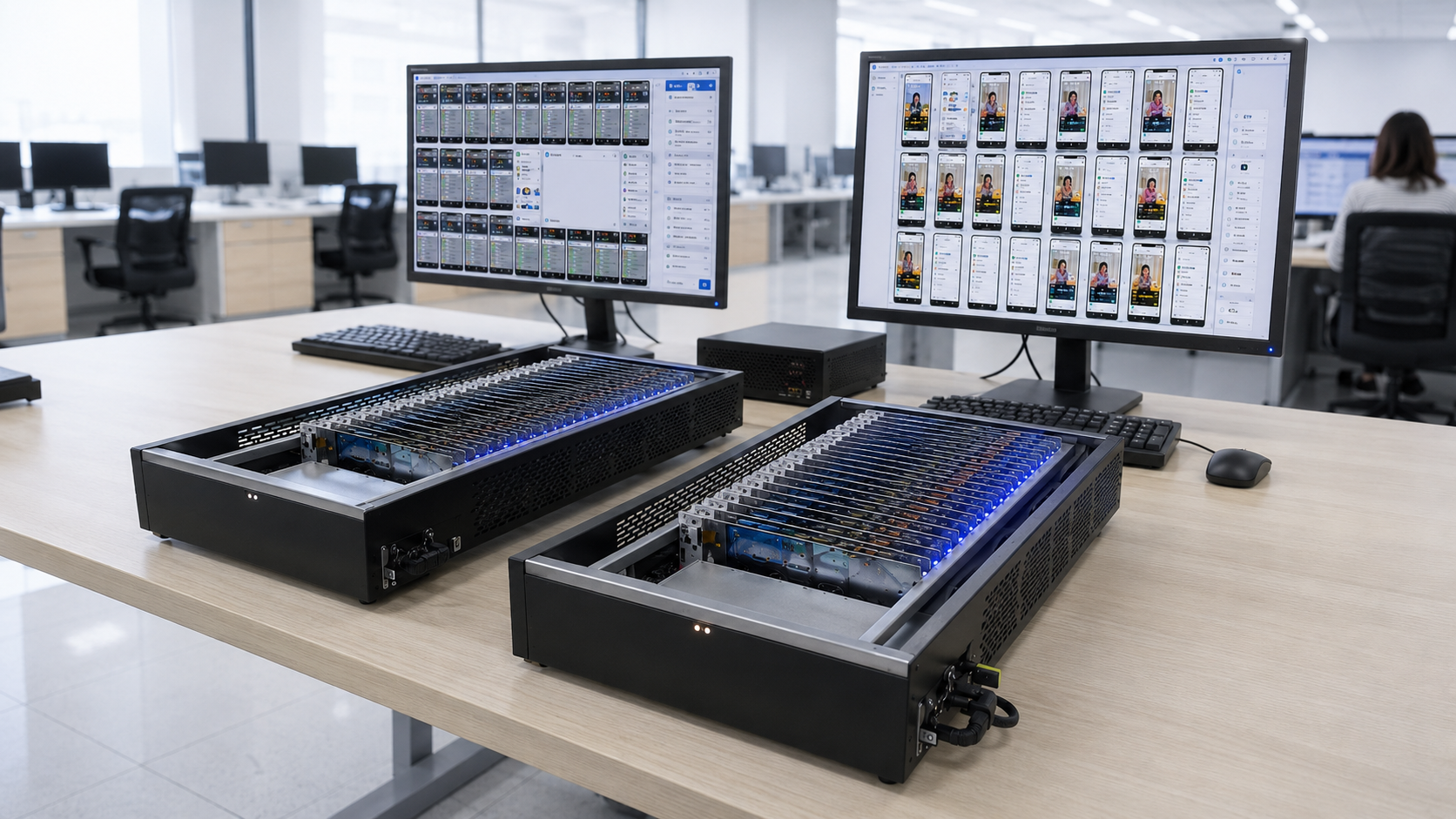
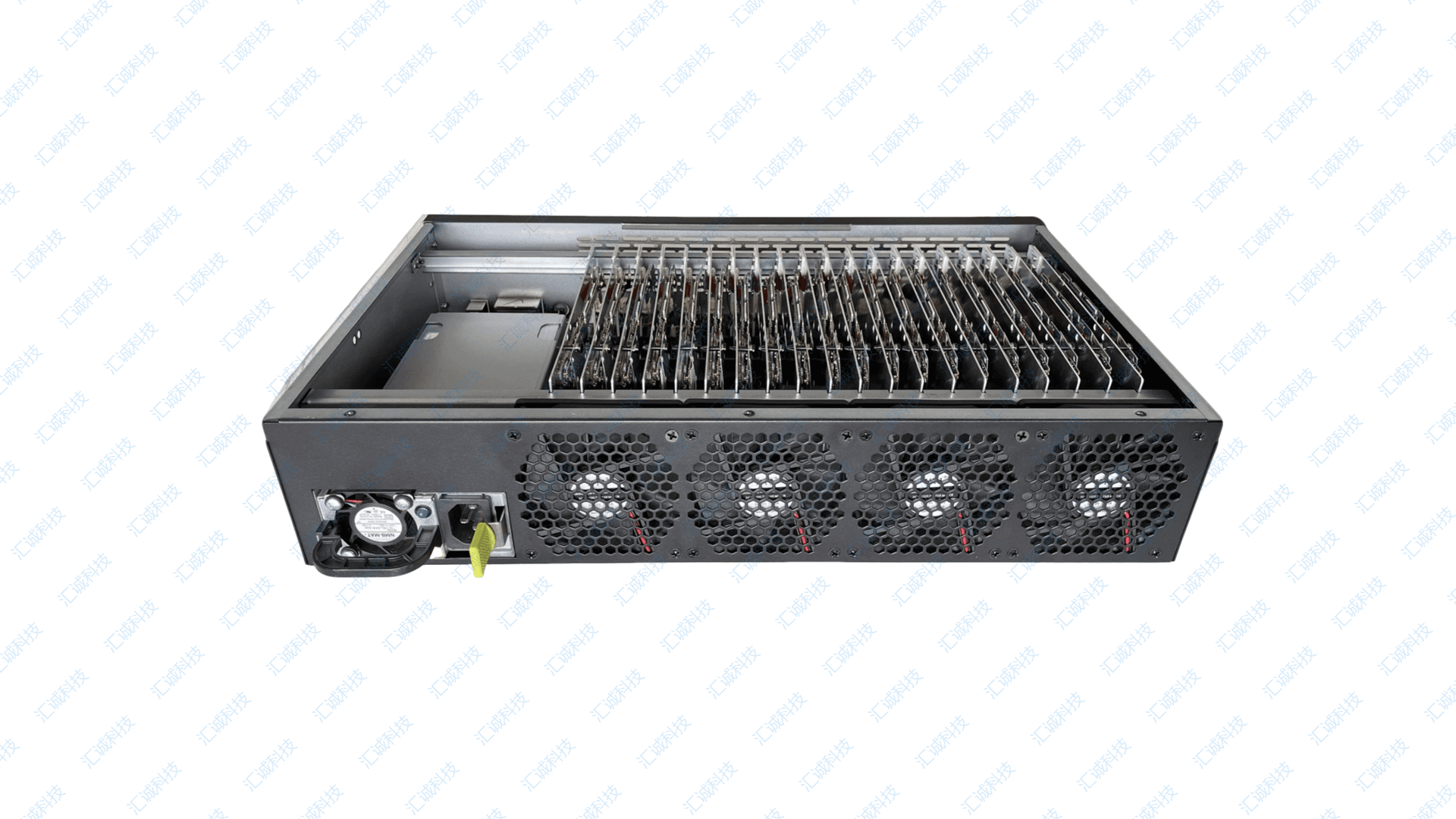
One box integrates 20 mobile phone motherboards (or 32PCS full-phone configuration). Screen, battery, camera and SIM slot are removed on motherboard configurations; boards mount in a metal chassis with group-control software for batch operation.
Electrical
220V AC input. Approximately 100W under continuous load (e.g. sustained app/game activity). Centralized power bus inside chassis.
Physical
Carton size approximately 55×38×16 cm. Weight approximately 7 kg per 20-node box. Stackable for warehouse deployment.
Control
One Windows PC typically controls 3–5 boxes (60–100 nodes). USB mode (blue LED) or OTG/LAN Ethernet mode (green LED). VPN or proxy tools supported when workflow requires IP change.
Legitimate use
Development, testing, device management, QA automation and lawful multi-device operations only.
2. Overview
A phone farm box is a metal chassis that powers and connects multiple physical Android phones or motherboards to one control PC. Group-control software mirrors screens and sends batch commands.
**Legitimate use cases:** app compatibility testing, QA automation, device management workflow validation, software integration testing, enterprise device lab operations.
Guangzhou Phone Farm supplies the hardware chassis, power, cabling and deployment support. Group-control software is configured per your chosen tool - we assist with ADB, USB and OTG/LAN setup.
This manual covers standard Android motherboard box / phone farm box deployment. iPhone deployments differ - contact sales.
3. Before You Start
Control PC
- Windows 10 or Windows 11 (64-bit)
- 16 GB RAM minimum for multi-box; 32 GB+ recommended
- SSD storage; stable power supply
- Uninstall or disable phone assistant apps that grab ADB ports
- Add antivirus exclusion for ADB / software install folder if needed
USB
- Prefer USB 2.0 ports and powered USB 2.0 hubs
- Avoid long USB 3.0 chains - can cause "insufficient USB resources"
Network (OTG/LAN mode)
- Router with enough DHCP leases for all devices + PC
- Box and PC on same subnet
- For 50+ devices: use dedicated soft router (see section 6)
Power
- Stable 220V (or use transformer per local voltage - confirm in RFQ)
- Do not share wall circuit with large inductive loads
ADB authorization
- Obtain authorization files from your board supplier before first session
- Backup authorization folder - required after PC replacement
4. Package Checklist
Verify shipment contents on arrival:
[ ] Phone farm box / chassis with devices or boards installed
[ ] 220V power cable
[ ] USB data cables (if not pre-installed)
[ ] Router or switch (if ordered as bundle)
[ ] Spare screen unit (if ordered - useful for emergency debugging)
[ ] Quick start card with support contacts
[ ] Remote support: AnyDesk session scheduled if pre-arranged
Report shipping damage within 48 hours with photos.
5. USB Mode Setup
**Indicator:** Blue LED = USB / WiFi path mode
1. Install group-control / mirroring software on Windows PC
2. Connect box to PC via USB (use powered hub if multiple boxes)
3. Power on box - wait for all boards to boot
4. Open software -> refresh device list
5. First mirror: unlock prompt on device - tap **Allow** and check "always allow"
6. Verify batch mirror and basic tap/swipe control
**If device list empty:** check cable, power, USB debugging, authorization files, try another USB 2.0 port.
**Do not:** click "Deny" on USB debugging prompt - may require factory rework to recover.
6. OTG / LAN Mode Setup
**Indicator:** Green LED = OTG / Ethernet mode
1. Connect box and PC to **same router** (Ethernet preferred for PC)
2. Note router subnet (e.g. 192.168.1.x)
3. In software: add IP scan range (e.g. 192.168.1.1-254)
4. Run scan - devices should appear by IP
5. Execute `adb tcpip 5555` per device if required by your software
6. Toggle box switch twice if hardware requires mode change USB -> OTG
7. Rescan IP range
Router performance notes:
- 20 devices: consumer router often OK
- 50+ devices: soft router with gigabit LAN
- Disable phone WiFi when using Ethernet mode
- Fixed DHCP reservations reduce scan churn
7. ADB Authorization
Authorization files let PC talk to boards without repeated on-screen approval.
Placement (Windows):
C:\Users\<YourUsername>\.androidExtract supplier-provided archive into this folder. Restart PC and software.
**After changing PC or reinstalling Windows:** copy backup authorization folder or re-authorize each board.
Do not casually:
- Factory reset boards
- Upgrade OS OTA without plan
- Disable developer options
- Revoke USB debugging authorizations
Keep one spare board with screen attached for authorization recovery if needed.
8. Recommended PC Configuration
Use a dedicated Windows control PC for multi-box farms. Specs depend on node count and software load.
Small lab (1-2 boxes / up to ~40 nodes, USB mode)
- Windows 10 or 11 64-bit
- Intel i5 or Ryzen 5, 16 GB RAM, SSD
- Multiple USB 2.0 root ports or powered USB 2.0 hubs
Medium deployment (3–5 boxes / 60–100 nodes)
- 32 GB RAM recommended
- Intel Xeon E5-2680 V2 multi-core or equivalent / Ryzen 7
- Separate USB controllers or plan OTG/LAN for heavy loads
Software load
- Close unnecessary background apps
- Exclude ADB and group-control install folders from real-time antivirus scan
- Use wired Ethernet on PC when running OTG/LAN mode
Send your target box count in RFQ for a written PC recommendation.
9. Router and Network Notes
OTG/LAN mode requires stable LAN between box, router and control PC.
20 devices or fewer
- Stable consumer router with enough DHCP leases
- Box and PC on same subnet (e.g. 192.168.1.x)
50+ devices
- Dedicated soft router with gigabit LAN recommended
- Avoid overloading WiFi; use Ethernet to PC
- Fixed DHCP reservations reduce scan churn
Checklist
- Same subnet for PC and devices
- Disable phone WiFi when using Ethernet OTG mode
- Document router model and IP range before remote support
See also: /blog/usb-mode-vs-otg-lan-mode for mode selection.
10. Troubleshooting
Screen goes black after mirroring
-> Increase standby timeout in phone settings; unlock once after boot
Screen casts but mouse cannot control
-> Developer options → USB settings (safe mode) → enable USB simulation click
Password input page shows black screen
-> Disable secure keyboard; on Android 12+ root may be required; blind tap may still work
Device not detected
-> Power, cable, USB debugging, authorization, try USB 2.0 port/hub
ADB unauthorized
-> Fix authorization folder; revoke and re-allow on device with screen attached
Insufficient USB resources
-> Powered USB 2.0 hub; fewer simultaneous mirrors; split across controllers; migrate to OTG/LAN
Screen mirroring black
-> Unlock device once; disable battery optimization for mirror app; check GPU load on PC
Can view but cannot control
-> Re-enable accessibility / input service in software; confirm not in read-only mode
Router disconnects with many devices
-> Upgrade router; separate VLAN; reduce DHCP lease churn; cable quality check
OTG/LAN scan finds nothing
-> Same subnet confirm; firewall off on PC; ping device IP; verify green mode
Software cannot open
-> Run as administrator; VC++ runtime; exclude antivirus
Antivirus blocks software
-> Add install folder and ADB to exclusions
Wrong USB 3.0 port issue
-> Move to USB 2.0 root port or hub
XHCI / motherboard USB limit
-> PCIe USB expansion card with independent controller; OTG/LAN for large scale
11. Remote Setup Support
Included with hardware purchase (standard scope):
1. Schedule via email or WhatsApp after delivery
2. Install AnyDesk on control PC
3. Engineer connects - verifies power, USB/LAN, software list
4. Walk through authorization, mirror, batch action test
5. Handover checklist signed off by your operator
**After-sales:** warranty-period remote diagnosis for hardware defects and configuration regressions. Spare parts quoted separately after warranty.
12. API / WebSocket Automation (WSAPI)
Group-control software exposes a WebSocket API (WSAPI) on the control PC for custom automation in Python, Node.js and other languages.
Address
127.0.0.1:22223
Demo samples
See vendor folder: androids\Dev samples
Documented actions
List, Detail, HostDetail, GetAppInfoByAppName, CurrentAppInfo, GetGroup, CreateGroup, UpdateGroup, DeleteGroup, RemoveDeviceGroup, EditDeviceName, EditDeviceNo, Screen, WriteClipboard, GetClipboard, BasisOperate, PointerEvent, KeyBoardkey, InputText, ADB, BeginFileSend, StopSendFile, ExecuteBat, StopBat, HttpDown, PullText, PullFile
Integration paths
- ADB shell commands scripted from CI
- WSAPI WebSocket from Python/Node.js
- Batch task templates in group-control platform
Use automation only within your legal and contractual boundaries. API documentation provided after hardware purchase.
13. Warranty & After-sales
Standard terms
- Chassis / cabinet: 12 months
- Motherboards: 90 days (1 month on some legacy quotes — confirm on proforma)
- Accessories (fans, cables, hubs): 12 months
What is included (typical motherboard box)
Hardware with 20 boards, USB cable, box power cord, spare motherboard power cord, control software trial period (confirm scope in quote).
Sales & delivery
Custom-assembled units: no return/exchange after delivery. Buyer arranges international freight; we assist with forwarder introduction. Free remote AnyDesk support until operational.
**Custom-assembled / ROM-modified units:** no return after dispatch unless written otherwise in quote.
**Remote support:** included during commissioning and warranty period for configuration issues.
**Shipping damage:** report within 48 hours with photos.
Hardware failure during warranty
1. Contact sales with order number and photo/video of the fault
2. Remote AnyDesk diagnosis (configuration vs hardware)
3. Confirmed defect: spare board, fan or cable shipped, or repair guidance (freight per agreement)
Pre-shipment verification
Factory photos, burn-in status and carton packing photos or video available on request before dispatch.
**Out of warranty:** parts and labor quoted separately.
14. Before Contacting Support, Please Prepare
Gather these details before opening a support or RFQ ticket:
- Product model (motherboard box, 32PCS box, 12PCS array, etc.)
- Number of boxes and approximate node count
- Connection mode: USB, OTG/LAN, or mixed
- Windows version on control PC
- Screenshots or exact error message text
- Router model and IP segment if OTG/LAN is used
Need help choosing USB mode or OTG/LAN mode? Send your quantity and setup environment for RFQ support via /contact.
Need help choosing USB or OTG/LAN mode? Send quantity and setup environment for RFQ support.
Need hardware for this setup — Send RFQ
Send device count, target model, connection mode (USB / OTG-LAN) and shipping country. Guangzhou Phone Farm replies with hardware configuration and factory quote within 24 hours.
For confirmed bulk orders, payment methods can be discussed with sales, including USDT when applicable.
More articles: Technical Articles